
ComfyUI Extension: ComfyUI-OpenCut
Run ComfyUI workflows without the setup
No installs, no CUDA version roulette, no GPU sitting idle on your bill. Bring a workflow and run it in the browser.
This is a ComfyUI plugin that integrated OpenCut into ComfyUI, originally developed by a/OpenCut
README
ComfyUI-OpenCut
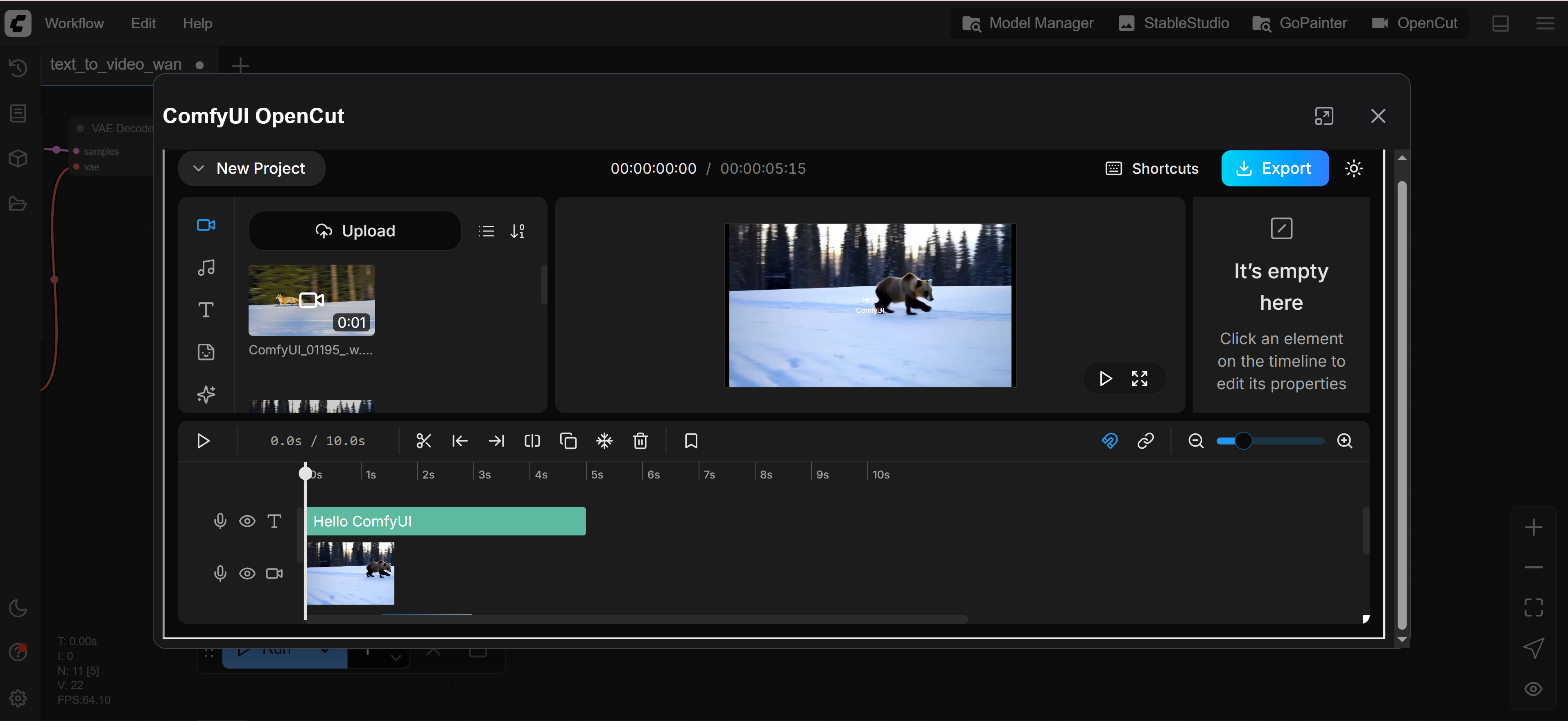
A powerful, privacy-focused video editor integrated directly into ComfyUI. This plugin brings professional video editing capabilities to your ComfyUI workflow without any server-side processing.
🆕 What's New in v0.4.0
This release rebases the embedded OpenCut onto upstream main after ~8 months
of heavy development (≈364 commits since the v0.3.0 build on 2025-08-30).
The highlights below are from the OpenCut project itself — they apply to
the editor running inside this plugin as well.
Rendering engine — WebGL ➜ Rust/WASM GPU renderer
- New GPU renderer migrated from WebGL to wgpu compiled to WASM (with a WebGL fallback while WebGPU support stabilizes in browsers).
- Time, effects, and mask logic split into dedicated Rust crates
(
opencut-wasm) — shared between web and the new desktop build. - Batched GPU command encoding, degraded-renderer banner, and graceful handling when no GPU is available.
Keyframes & animation
- Rewritten animation system using scalar-channel bindings.
- Graph editor for flat keyframe segments — a new popover lets you edit multiple properties at once.
- Expandable keyframe lanes directly in the timeline.
- Keyframes now wired for opacity, text color, every background property, and per-axis position animation.
- Clipboard-level keyframe paste.
Effects & masks
- New WebGL effects system — starts with a Blur effect and per-clip effect stacking with asset sorting.
- Cinematic bars, diamond, heart, star, and custom/text masks, with stable background-blur previews.
Timeline & editor UX
- Move/resize/split/delete multiple elements at once.
- Clip volume line visualized directly in the timeline.
- Waveform rendering improvements and correct audio waveform height.
- Timeline auto-scroll while dragging clips.
- Copy/paste for elements; ripple support for element resize.
- Select-on-insert; centralized selection management.
- New preview overlay system (guides, bookmark notes).
App surface
- Desktop app scaffolding (Tauri) introduced.
- Changelog page with markdown + technical-detail support; "new release" notice.
- Branding page; mobile-gate screen; history view in the feedback popover.
- Audio separated from elements (export now handles audio consistently).
- Migration system rewritten (
run()+ pure v1→v2 transforms) with new storage-schema migrations.
Under the hood
- File tree restructured into domain modules (
editor/,timeline/,preview/,project/,media/, etc.) with a cleaner dependency graph. - Time utilities migrated from TypeScript to Rust WASM.
- Unified element-update pipeline and centralized ripple handling.
Plugin-side fixes in this build
- All assets and routes honor the
/opencutbasePath (logo, landing image, country flags, effect previews, PWA manifest). - RSC prefetch URLs served by the Python handler now cover Next.js 16's
dot-separated
__next.<seg>.__PAGE__.txtformat. getEditorUrl/getProjectsUrlno longer double-prefix basePath when passed to<Link>.- Sounds-search and other removed server routes are gracefully skipped in ComfyUI mode.
- Save timer no longer throws after closing a project.
See docs/COMFYUI_INTEGRATION.md and docs/COMFYUI_BUILD_CHECKLIST.md
in the OpenCut repo for adaptation details and future rebase guidance.
🌟 Features
Core Editing Capabilities
- Multi-track Timeline Editor: Professional timeline with support for multiple video, audio, and overlay tracks
- Real-time Preview: Instant preview of edits without rendering
- Drag & Drop Interface: Intuitive drag-and-drop for media files and timeline elements
- Non-destructive Editing: All edits are non-destructive, preserving original media files
Media Support
- Video Formats: MP4, WebM, MOV, AVI, and more
- Audio Formats: MP3, WAV, OGG, AAC
- Image Formats: PNG, JPG, GIF, WebP
- Resolution Support: From SD to 4K video editing
Advanced Features
- Keyframe Animation: Animate position, scale, rotation, and opacity
- Audio Waveform Visualization: See audio waveforms directly on the timeline
- Snap-to-Grid: Precise alignment with magnetic timeline snapping
- Multiple Export Options: Export in various formats and resolutions
- Undo/Redo System: Full undo/redo support with keyboard shortcuts
Layout & Workflow
- Customizable Layouts: 4 preset layouts optimized for different workflows:
- Default: Balanced layout for general editing
- Media Focus: Larger media panel for asset-heavy projects
- Inspector Focus: Expanded properties panel for detailed adjustments
- Vertical Preview: Optimized for vertical video editing (TikTok, Reels)
- Resizable Panels: Drag to resize any panel to your preference
- Keyboard Shortcuts: Comprehensive keyboard shortcuts for efficient editing
Privacy & Performance
- 100% Client-side Processing: All video processing happens in your browser using WebAssembly
- No Upload Required: Your media files never leave your computer
- FFmpeg Integration: Powered by FFmpeg.wasm for professional-grade processing
- IndexedDB Storage: Projects saved locally in your browser
- OPFS Support: Large files stored efficiently using Origin Private File System
📦 Installation
Prerequisites
- ComfyUI (latest version recommended)
- Modern web browser (Chrome, Firefox, Edge, Safari)
- At least 4GB of available RAM for video processing
Installation Steps
-
Navigate to your ComfyUI
custom_nodesdirectory:cd /path/to/ComfyUI/custom_nodes -
Clone this repository:
git clone https://github.com/[your-repo]/ComfyUI-OpenCut.git -
Install dependencies (if any):
cd ComfyUI-OpenCut pip install -r requirements.txt # If Python dependencies exist -
Restart ComfyUI
🚀 Usage
Method 1: Direct Browser Access
Open your browser and navigate to:
http://127.0.0.1:8188/opencut/
Method 2: ComfyUI Interface (Requires ComfyUI Frontend v1.24.4+)
- Open ComfyUI in your browser
- Look for the "OpenCut" button in the interface
- Click to launch the video editor in a new tab
🎬 Getting Started
Creating Your First Project
- Launch OpenCut using one of the methods above
- Click "New Project" or drag media files directly onto the interface
- Your media will appear in the Media Panel (left side)
- Drag media from the panel onto the timeline to start editing
Basic Editing Workflow
- Import Media: Drag files or click "Upload" in the Media Panel
- Add to Timeline: Drag media to the desired track and position
- Trim Clips: Hover over clip edges and drag to trim
- Add Transitions: Overlap clips to create automatic transitions
- Adjust Properties: Select a clip and use the Properties Panel to adjust settings
- Preview: Use the spacebar to play/pause your edit
- Export: Click Export and choose your desired format and quality
Keyboard Shortcuts
Space: Play/PauseS: Split clip at playheadDelete: Delete selected elementCtrl/Cmd + Z: UndoCtrl/Cmd + Shift + Z: RedoCtrl/Cmd + C/V: Copy/Paste[/]: Set in/out pointsArrow Keys: Frame-by-frame navigation
🎨 Layout Presets
Switching Layouts
Click the layout button in the header to switch between presets:
- Default Layout: Balanced view with all panels visible
- Media Layout: Enlarged media panel for browsing many assets
- Inspector Layout: Expanded properties panel for detailed editing
- Vertical Layout: Optimized for 9:16 vertical videos
Custom Panel Sizing
- Drag the dividers between panels to customize sizes
- Your custom sizes are saved per layout preset
- Click the reset button to restore default sizes
🔧 Advanced Features
Project Management
- Projects are automatically saved to browser storage
- Export/Import projects as JSON files for backup
- Multiple projects can be managed from the Projects page
Media Processing
- Automatic thumbnail generation for videos
- Waveform generation for audio tracks
- Smart proxy generation for smooth playback of large files
Export Options
- Format: MP4, WebM, MOV
- Resolution: Original, 1080p, 720p, 480p
- Quality: High, Medium, Low
- Frame Rate: 24, 30, 60 fps
- Audio: Stereo/Mono, various bitrates
🐛 Troubleshooting
Common Issues
Media not loading:
- Ensure files are in supported formats
- Check browser console for errors
- Try refreshing the page
Playback stuttering:
- Lower preview resolution in settings
- Close other browser tabs
- Ensure adequate RAM is available
Export failing:
- Check available browser storage
- Try a lower resolution/quality setting
- Ensure no corrupted media files
Layout not changing:
- Clear browser cache
- Check localStorage is enabled
- Try resetting to default layout
Browser Requirements
- Chrome 90+, Firefox 89+, Safari 15+, Edge 90+
- WebAssembly support required
- SharedArrayBuffer support recommended
- At least 4GB RAM recommended
🤝 Contributing
Contributions are welcome! Please feel free to submit issues and pull requests.
Development Setup
- Clone the repository
- Install dependencies:
bun install - Run development mode:
bun dev - Build for production:
bun run build:comfyui
📝 License
This project integrates OpenCut, originally developed by OpenCut-app. Please refer to the original project for licensing information.
🙏 Acknowledgments
- Original OpenCut developers for the amazing video editor
- ComfyUI team for the extensible platform
- FFmpeg.wasm for client-side video processing
- All contributors and users of this integration
📞 Support
For issues specific to the ComfyUI integration, please open an issue in this repository. For OpenCut-specific issues, please refer to the original OpenCut repository.
Note: This integration is under active development. Some features may be experimental or subject to change.
Run ComfyUI workflows without the setup
No installs, no CUDA version roulette, no GPU sitting idle on your bill. Bring a workflow and run it in the browser.