
ComfyUI Extension: ComfyUI-qwenmultiangle
Run ComfyUI workflows without the setup
No installs, no CUDA version roulette, no GPU sitting idle on your bill. Bring a workflow and run it in the browser.
A ComfyUI node for 3D camera angle control, outputs angle prompts for multi-angle image generation
Looking for a different extension?
Custom Nodes (2)
README
ComfyUI-qwenmultiangle
Language / 语言 / 言語 / 언어: English | 中文 | 日本語 | 한국어
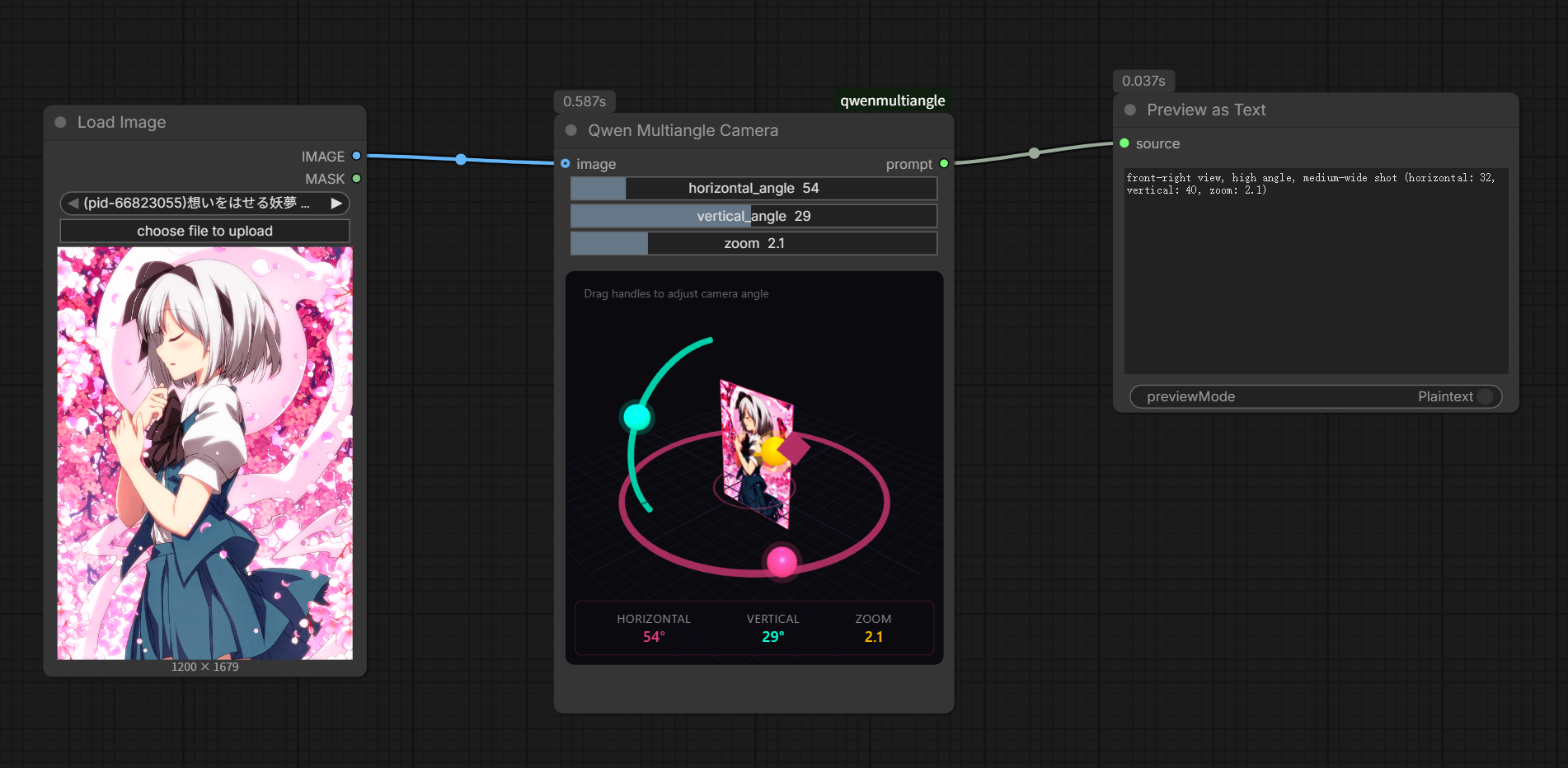
A ComfyUI custom node for 3D camera angle control. Provides an interactive Three.js viewport to adjust camera angles and outputs formatted prompt strings for multi-angle image generation.
Features
- Interactive 3D Camera Control - Drag handles in the Three.js viewport to adjust:
- Horizontal angle (azimuth): 0° - 360°
- Vertical angle (elevation): -30° to 60°
- Zoom level: 0 - 10
- Quick Select Dropdowns - Three dropdown menus for quickly selecting preset camera angles:
- Azimuth: front view, quarter views, side views, back view
- Elevation: low-angle, eye-level, elevated, high-angle shots
- Distance: wide shot, medium shot, close-up
- Real-time Preview - Connect an image input to see it displayed in the 3D scene as a card with proper color rendering
- Camera View Mode - Toggle
camera_viewto preview the scene from the camera indicator's perspective, with interactive orbit controls (drag to rotate, scroll to zoom) - Prompt Output - Outputs formatted prompts compatible with Qwen-Image-Edit-2511-Multiple-Angles-LoRA
- Bidirectional Sync - Slider widgets, 3D handles, and dropdowns stay synchronized
- Multi-language Support - UI labels available in English, Chinese, Japanese, and Korean (auto-detected from ComfyUI settings)
- Camera Prompt Translation - Optional companion node (Qwen Multiangle Camera Translate) translates the camera terms into Chinese, Japanese, or Korean so they match a non-English base prompt
Installation
-
Navigate to your ComfyUI custom nodes folder:
cd ComfyUI/custom_nodes -
Clone this repository:
git clone https://github.com/jtydhr88/ComfyUI-qwenmultiangle.git -
Restart ComfyUI
-
Download LoRA from https://huggingface.co/fal/Qwen-Image-Edit-2511-Multiple-Angles-LoRA/tree/main into your lora folder
Development
This project uses Vue 3, TypeScript, and Vite for building the frontend. The 3D viewport is built with Three.js. The backend uses ComfyUI's V3 node API.
Prerequisites
- Node.js 18+
- npm
Build
# Install dependencies
npm install

# Build for production
npm run build

# Build with watch mode (for development)
npm run dev

# Type check
npm run typecheck
Project Structure
ComfyUI-qwenmultiangle/
├── src/
│   ├── main.ts                        # Extension entry point (Vue app mounting)
│   ├── App.vue                        # Root Vue component
│   ├── CameraWidget.ts               # Headless Three.js camera control engine
│   ├── i18n.ts                        # Internationalization (en/zh/ja/ko)
│   ├── types.ts                       # TypeScript type definitions
│   ├── components/
│   │   ├── SceneCanvas.vue            # Three.js canvas container
│   │   └── ControlPanel.vue           # Dropdown controls & value display
│   └── composables/
│       └── useCameraWidget.ts         # Reactive state bridge (Vue ↔ Three.js)
├── js/                                # Build output (committed for distribution)
│   ├── main.js
│   └── assets/
│       └── main.css
├── nodes.py                           # ComfyUI V3 node definition
├── __init__.py                        # Python module init
├── package.json
├── tsconfig.json
└── vite.config.mts
Usage
- Add the Qwen Multiangle Camera node from the
image/multianglecategory - Optionally connect an IMAGE input to preview in the 3D scene
- Adjust camera angles by:
- Dragging the colored handles in the 3D viewport
- Using the slider widgets
- Selecting preset values from the dropdown menus
- Toggle
camera_viewto see the preview from the camera's perspective - The node outputs a prompt string describing the camera angle
Widgets
| Widget | Type | Description | |--------|------|-------------| | horizontal_angle | Slider | Camera azimuth angle (0° - 360°) | | vertical_angle | Slider | Camera elevation angle (-30° to 60°) | | zoom | Slider | Camera distance/zoom level (0 - 10) | | default_prompts | Checkbox | Deprecated - Kept for backward compatibility only, has no effect | | camera_view | Checkbox | Preview scene from camera's perspective |
3D Viewport Controls
| Handle | Color | Control | |--------|-------|---------| | Ring handle | Pink | Horizontal angle (azimuth) | | Arc handle | Cyan | Vertical angle (elevation) | | Line handle | Gold | Zoom/distance |
The image preview displays as a card - front shows the image, back shows a grid pattern when viewed from behind.
Camera View Mode Controls
When camera_view is enabled, you can interactively control the camera using mouse:
| Action | Control | |--------|---------| | Drag left/right | Rotate horizontally (azimuth) | | Drag up/down | Rotate vertically (elevation) | | Scroll up | Zoom in (increase distance) | | Scroll down | Zoom out (decrease distance) |
All interactions respect the same limits as the sliders:
- Azimuth: 0° - 360° (wraps around)
- Elevation: -30° to 60°
- Distance: 0 - 10
Changes made via orbit controls automatically sync with the slider widgets.
Quick Select Dropdowns
Three dropdown menus are available in the 3D viewport for quickly selecting preset camera angles:
| Dropdown | Options | |----------|---------| | Horizontal (H) | front view, front-right quarter view, right side view, back-right quarter view, back view, back-left quarter view, left side view, front-left quarter view | | Vertical (V) | low-angle shot, eye-level shot, elevated shot, high-angle shot | | Distance (Z) | wide shot, medium shot, close-up |
Selecting a preset will automatically update the 3D handles and slider widgets.
Internationalization
The UI labels are automatically translated based on your ComfyUI language setting:
| Language | Code | |----------|------| | English | en | | Chinese (Simplified) | zh | | Japanese | ja | | Korean | ko |
The output prompt is always in English regardless of the UI language.
Output Prompt Format
The node outputs prompts in the format required by Qwen-Image-Edit-2511-Multiple-Angles-LoRA:
<sks> {azimuth} {elevation} {distance}
Examples:
<sks> front view eye-level shot medium shot<sks> right side view high-angle shot close-up<sks> back-left quarter view low-angle shot wide shot
Supported Values
| Parameter | Values |
|-----------|--------|
| Azimuth | front view, front-right quarter view, right side view, back-right quarter view, back view, back-left quarter view, left side view, front-left quarter view |
| Elevation | low-angle shot (-30°), eye-level shot (0°), elevated shot (30°), high-angle shot (60°) |
| Distance | close-up, medium shot, wide shot |
Camera Prompt Translate Node
The camera node always outputs its terms in English. When your base prompt is written in another language (for example Chinese), appending English camera terms can weaken or completely break the camera effect, because the model tends to ignore instructions that don't match the surrounding language.
The Qwen Multiangle Camera Translate node solves this. It takes a prompt string and translates only the camera / shot vocabulary into a target language using a hand-maintained glossary. Everything else — your base prompt, the <sks> token, punctuation — passes through untouched.
This is a separate node on purpose: the original camera node is unchanged, so existing workflows keep working exactly as before. Add the translate node only when you need it.
Usage
- Add the Qwen Multiangle Camera Translate node from the
image/multianglecategory - Link the
promptoutput of Qwen Multiangle Camera into itspromptinput (or paste text directly) - Choose a Target Language
- Feed the translated output into your text encoder
Typical connection: Qwen Multiangle Camera → Qwen Multiangle Camera Translate → CLIP Text Encode
Inputs / Outputs
| Port | Type | Description | |------|------|-------------| | prompt (input) | String | Prompt containing camera terms (link from the camera node, or paste text) | | target_language | Dropdown | Target language for the camera terms | | prompt (output) | String | Prompt with camera terms translated |
Target Languages
Matches the languages this README ships in:
| Option | Behavior | |--------|----------| | 中文 (Chinese) | Translate camera terms to Chinese | | 日本語 (Japanese) | Translate camera terms to Japanese | | 한국어 (Korean) | Translate camera terms to Korean | | English | Pass-through (no change) |
Only phrases present in the glossary are translated; any unrecognized word passes through unchanged. The glossary lives in camera_glossary.py and is kept in sync with the UI translations in src/i18n.ts, so it is easy to extend or edit by hand.
Example
The same camera pose (front view / eye-level shot / medium shot) in each target language:
| Target | Output |
|--------|--------|
| English | <sks> front view eye-level shot medium shot |
| 中文 | <sks> 正面视角 平视 中景 |
| 日本語 | <sks> 正面 アイレベル ミディアムショット |
| 한국어 | <sks> 정면 아이 레벨 미디엄 샷 |
Credits
Original Implementation
This ComfyUI node is based on qwenmultiangle, a standalone web application for camera angle control.
The original project was inspired by:
- multimodalart/qwen-image-multiple-angles-3d-camera on Hugging Face Spaces
- fal.ai - Qwen Image Edit 2511 Multiple Angles
Related Projects
- ComfyUI-qwenmultiangle-plus - Another modified version based on this project
License
MIT
Run ComfyUI workflows without the setup
No installs, no CUDA version roulette, no GPU sitting idle on your bill. Bring a workflow and run it in the browser.